Clipping rasters and point clouds with polygons: windows, transforms, nodata and tiles
What actually goes on when you clip a raster or a LiDAR point cloud to a polygon, and the small things (CRS, transform, nodata, tile borders) that quietly break it.
Clipping sounds like nothing: keep what’s inside the polygon, throw away the rest. But it turns out to be where a lot of quiet geospatial bugs come from. The polygon is in a different coordinate system. The output is shifted by half a pixel. The clipped area isn’t the same size as the polygon. Real zeros turn into “no data”. Points on a tile border show up twice. So I wrote down what a clip really does, first for rasters (orthomosaics, elevation models) and then for point clouds. All the examples use synthetic data.
Step 0: get both into the same CRS
You can only compare a polygon and a raster if they’re in the same coordinate reference system (CRS). Reproject the polygon to the raster’s CRS, not the other way round. Reprojecting a vector just moves its corner points, exactly. (Very long straight edges can bend in the new projection, so add extra vertices along them first if the polygon is big.) Reprojecting a raster resamples every pixel and changes the data. Always check the CRS of every input yourself. A GeoJSON file is in WGS 84 longitude and latitude by definition, while the raster is often in a metric projection like UTM. If you clip without reprojecting, you usually get an empty result, or an error saying the shapes don’t overlap.
Rasters: a window plus a mask
A georeferenced raster is just an array plus an affine transform, which is a small formula that turns pixel indices into map coordinates. For a north-up image with square pixels of size and top-left corner :
gives the centre of pixel . The minus sign is there because rows count downwards while goes up.
The way I think about a clip, it’s two steps.
- Crop to a window. Turn the polygon’s bounding box into pixel rows and columns, and cut out that piece of the array. The cropped raster has a new top-left corner, so its transform has to be updated. This is the bit that’s easy to forget. If you save the cropped array with the old transform, it gets placed back at the original corner and lands in the wrong spot on the map.
- Mask. Inside the window, set every pixel that’s “outside” the polygon to the nodata value.
import numpy as np, shapely

def clip_raster(img, x0, y0, res, poly, nodata=0):
    """Crop to the polygon's bounds, then blank pixels whose centre is outside."""
    minx, miny, maxx, maxy = poly.bounds
    c0, c1 = int(np.floor((minx - x0) / res)), int(np.ceil((maxx - x0) / res))
    r0, r1 = int(np.floor((y0 - maxy) / res)), int(np.ceil((y0 - miny) / res))
    win = img[r0:r1, c0:c1].copy()
    cols, rows = np.meshgrid(np.arange(c0, c1), np.arange(r0, r1))
    xc, yc = x0 + (cols + 0.5) * res, y0 - (rows + 0.5) * res   # pixel centres
    win[~shapely.contains_xy(poly, xc, yc)] = nodata
    new_origin = (x0 + c0 * res, y0 - r0 * res)                 # new top-left corner
    return win, new_origin
On a synthetic 0.5 m raster, this gives exactly the same window, origin and pixel count as rasterio.mask.mask(..., crop=True). The library does the same thing, just with a rasterised polygon and a proper Affine object. With rasterio you then copy the source metadata and update height, width and transform (and nodata) before writing.
Which pixels count as inside?
A pixel is a little square, and a polygon edge can cut right through it. There are two common rules:
- Centre inside (the default in GDAL and rasterio): a pixel counts if its centre is inside. Along a long edge, the half-in, half-out pixels roughly cancel out, so the pixel count ends up close to the real area.
- All touched: a pixel counts if the polygon touches it at all. You never lose anything inside, but the result is always bigger than the polygon.
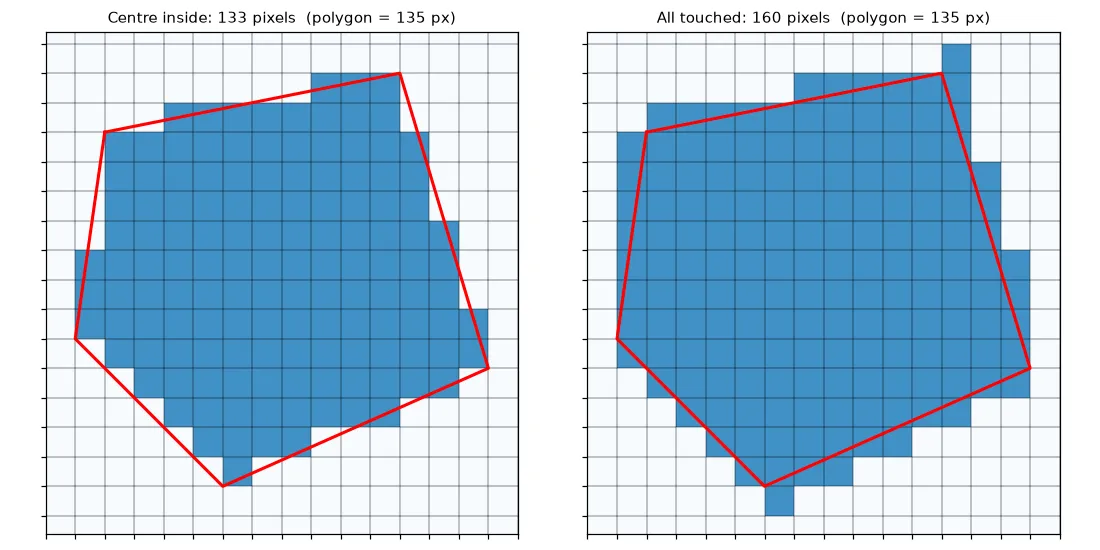
The difference is about one ring of pixels along the border, so it matters most for small polygons and big pixels. On the 0.5 m example (polygon area 13,500 pixels) the counts were 13,460 and 13,741. For zonal statistics, like mean height per stand, centre-inside is the honest choice. If you need to make sure a model sees every object in a polygon, use all-touched, or grow the polygon by one pixel first.
Picking a nodata value
Masked pixels need some value, and whoever reads the file needs to know that value means “no data”. Two traps:
- Clashing with real data. If nodata is 0 and the image has real black pixels, those pixels disappear from every later statistic. Use a value that can’t happen (like for elevations, or NaN in a float raster), or keep a separate mask or alpha band for 8-bit images.
- Forgetting to declare it. The value has to be written into the file’s metadata. Otherwise the masked area is just more zeros, and averages and colour stretches include it.
More than one polygon
If the vector file has several polygons, decide what you actually want. Passing all the geometries clips to their union, in one window that covers all of them. Looping over them gives one output per polygon. Code that only takes the first geometry (geometry[0]) quietly ignores the rest. That’s fine for a file you know has a single boundary, but it’s worth checking on purpose.
Point clouds: a box test first, then point-in-polygon
Points don’t sit on a grid, so clipping them is just a filter: keep the points whose is inside the polygon. Testing millions of points against a complicated polygon is the slow part. So first cut down the candidates with a cheap bounding-box test:
minx, miny, maxx, maxy = poly.bounds
inbox = (x >= minx) & (x <= maxx) & (y >= miny) & (y <= maxy)   # cheap test first
keep = np.zeros(len(x), bool)
keep[inbox] = shapely.contains_xy(poly, x[inbox], y[inbox])     # exact test
On 200,000 random points over a 100 m square, the box kept about 98,000 candidates and the polygon test kept 67,426, which matches the share of the area you’d expect. Dedicated tools (PDAL’s filters.crop, lidR’s clip_roi, WhiteboxTools, LAStools) do the same thing with spatial indexes over the file. After clipping, the header’s bounding box and point counts need updating. Good writers do that for you.
Cutting big data into tiles
Country-wide LiDAR and big orthomosaics come as tiles and get processed as tiles. Clipping a dataset into a regular grid brings three extra worries.
- Find candidates by intersection. Build the grid as polygons, then do a spatial join (or use an STRtree) between each source file’s footprint and the grid. Only the pairs that intersect need clipping.
- No duplicates, no gaps. With a closed test, a point sitting exactly on a shared edge is “inside” both tiles. Use half-open intervals, , so each point belongs to exactly one tile. For rasters, line the grid up with the pixel grid so tile borders fall on pixel edges.
- Buffers for neighbourhood operations. Ground filtering, interpolation and smoothing all look at neighbours. A tile clipped exactly at its border has no neighbours on one side, so the results go wrong near the edges. Clip with a buffer (say 10–20 m for LiDAR), process, then trim back to the exact tile. The same idea for images is in tiling large images for detection.
Key takeaways
- Reproject the polygon to the data’s CRS, never the raster to the polygon’s.
- A raster clip is a window plus a mask. The window needs a new transform with the new top-left corner.
- “Centre inside” matches the polygon area. “All touched” never misses anything but always grabs too much.
- Pick a nodata value that can’t occur in the data, and declare it in the file.
- For points, do a bounding-box test before point-in-polygon. For tiles, use half-open borders and process with buffers.
Resources
- Rasterio documentation, Masking a raster using a shapefile, and the topics on windows and georeferencing.
- GDAL, Raster data model: the geotransform and nodata.
- Shapely,
contains_xyfor vectorised point-in-polygon tests. - PDAL,
filters.cropfor clipping point clouds by polygons and bounds.